 Skip to content
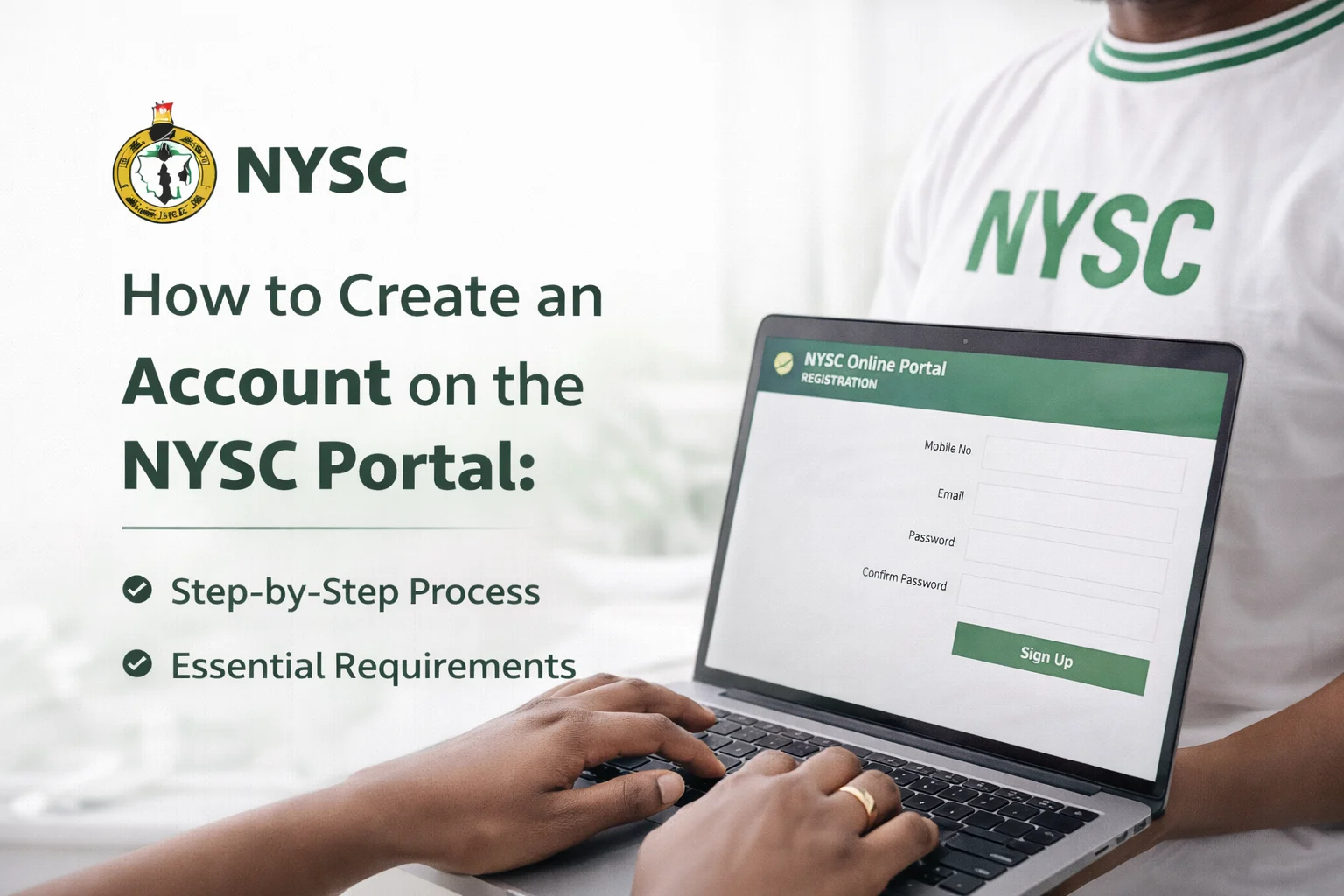
If you’re among the thousands of Nigerian graduates preparing for the National Youth Service Corps (NYSC), creating your portal account is your first real step toward this mandatory one year service. This isn’t just another online registration, it’s the gateway that connects you to your call up letter, state deployment, and every critical update throughout your service year.
Yet here’s the reality that many prospective corps members struggle with this process. Some get stuck at the verification stage, others lose access to their accounts, and a few miss important deadlines simply because they didn’t set up their accounts correctly. The NYSC portal handles over 300,000 new registrations annually, and the system can be particular about how you input your information.
This article walks you through every single step of how to create an account on the NYSC portal, from gathering the right documents to troubleshooting common errors. Whether you’re a fresh graduate or completing your degree soon, you’ll know exactly what to do, what to avoid, and how to ensure your registration goes smoothly the first time.
What You Need Before Starting Your NYSC Portal Registration
Setting yourself up for success starts with having the right materials at hand. The NYSC portal won’t let you proceed without specific information, and scrambling to find documents mid-registration often leads to errors or incomplete submissions.
Essential Documents and Information
Before you open your browser, kindly gather these items:
- Original Certificate or Statement of Result: Your institution must have awarded you a degree, HND, or equivalent qualification. The certificate should show your full name exactly as it appears on other official documents.
- Academic Transcript: Keep this handy for reference, especially if your certificate isn’t ready yet.
- Valid Email Address: Use an email you check regularly. This will be your primary communication channel with NYSC.
- Active Phone Number: The portal sends verification codes and updates via SMS.
- Passport Photograph: You’ll need a recent, clear digital photo with a white background, sized between 10KB and 50KB.
- Institution Details: Know your matriculation number, graduation year, and course of study.
- Personal Information: Have your date of birth, state of origin, local government area, and next of kin details ready.
Technical Requirements for Smooth Registration
The NYSC portal works best under specific conditions. Using an outdated browser or poor internet connection causes most registration headaches.
- Use Google Chrome, Mozilla Firefox, or Microsoft Edge
- Ensure stable internet connectivity
- Clear your browser cache and cookies before starting
- Disable pop-up blockers temporarily, as the portal opens new windows for certain steps
- Use a laptop or desktop computer when possible; mobile phones can cause formatting issues
How to Access the Official NYSC Portal
With fake websites proliferating online, knowing the correct NYSC portal address matters more than you might think. Scammers create convincing replicas to harvest personal data or collect fraudulent payments.
Finding the Legitimate NYSC Registration Portal
The official NYSC portal for account creation and registration is located at portal.nysc.org.ng/nysc .Bookmark this URL or type it directly into your browser. Avoid clicking on links from unsolicited emails or social media posts claiming to be from NYSC.
Once you navigate to the homepage, you’ll see several options including “Register,” “Login,” and “Dashboard.” For first-time users creating an account, click on the “Register” button prominently displayed on the main page.
Understanding the Portal Interface
The registration page presents a straightforward form divided into sections. The system guides you through each step sequentially, preventing you from skipping mandatory fields. Pay attention to the asterisks (*) marking required information, leaving these blank triggers error messages that can frustrate your progress.
Step-by-Step Account Creation Process
Creating your NYSC account follows a logical sequence that validates your information as you progress. Each stage builds on the previous one, so accuracy from the start saves time later.
Step 1: Initiating Your Registration
Click the “Register” button on the portal homepage. The system redirects you to a fresh registration form. You’ll see a declaration statement at the top, kindly read this carefully, as it outlines your responsibilities and confirms that you’re providing truthful information.
Check the box indicating you’ve read and agree to the terms. This simple action unlocks the rest of the form for data entry.
Step 2: Entering Your Email Address
The first actual data field requests your email address. Type it carefully, double-checking for typos. Common mistakes include switching “.com” to “.con” or omitting periods between words.
After entering your email, the portal sends a verification code to that address. Open your email inbox (check spam folders if nothing appears within five minutes) and copy the six-digit code. Return to the portal and paste this code in the verification field.
This step confirms you control the email address and establishes it as your account’s primary contact method. If the code doesn’t arrive, click “Resend Code” after waiting at least three minutes, the system has built-in delays to prevent spam.
Step 3: Creating Your Password
Choose a strong password combining uppercase letters, lowercase letters, numbers, and special characters. The portal requires at least eight characters and rejects commonly used passwords like “Password123” or “12345678.”
Write your password down in a secure location or save it in a password manager. You’ll need this every time you log in, and password recovery processes can take days during peak registration periods.
Step 4: Phone Number Verification
Enter your mobile number in the format specified by the portal (usually starting with your country code, +234 for Nigeria). Similar to email verification, expect an SMS containing a verification code within moments.
If the SMS doesn’t arrive, verify you’ve entered the correct number and that your phone has network coverage. Sometimes, network congestion delays messages during high-traffic periods when thousands of graduates register simultaneously.
Step 5: Completing Your Bio-Data
This section requires careful attention to detail. The information you provide here appears on your call-up letter and must match your academic documents exactly.
Fill in these fields accurately:
- Full Name: Enter your name exactly as it appears on your degree certificate, including middle names
- Date of Birth: Use the calendar tool to select your birth date; typing dates manually often creates format errors
- Gender: Select from the dropdown menu
- State of Origin: Choose your state, then select your local government area from the second dropdown that appears
- Blood Group: If you don’t know this, select “Unknown” you can update it later
- Genotype: Similarly, select “Unknown” if uncertain
Step 6: Academic Information Entry
This section connects your account to your institution and validates your eligibility for NYSC.
Provide the following details:
- Institution Name: Select from the dropdown list; if your school doesn’t appear, contact NYSC for assistance
- Matriculation Number: Enter this exactly as recorded by your institution
- Course of Study: Choose your degree program from the provided options
- Graduation Year: Select the year you completed your program
- Degree Class/Grade: For university graduates, select First Class, Second Class Upper, Second Class Lower, Third Class, or Pass; HND holders select Distinction, Upper Credit, Lower Credit, or Pass
Double check your matriculation number, errors here cause the most registration rejections during verification.
Step 7: Uploading Your Passport Photograph
Click the “Upload Photo” button and select your prepared passport photograph. The portal displays specific requirements on-screen:
- White background only
- Recent photograph (taken within the last three months)
- Clear facial features with no filters or editing
- File size between 10KB and 50KB
- JPEG or PNG format
If your photo exceeds the size limit, use free online tools like TinyPNG or Compressor.io to reduce the file size without losing quality. Photos that don’t meet specifications will be rejected, requiring you to log back in and re-upload.
Step 8: Next of Kin Information
Provide contact details for someone who can be reached in case of emergencies during your service year. This person should be a close relative, like parent, sibling, or spouse.
Enter their full name, relationship to you, phone number, and address. Verify the phone number is correct; NYSC may contact this person if they cannot reach you during critical situations.
Step 9: Review and Submit
Before clicking submit, scroll through the entire form one more time. The portal doesn’t allow immediate edits after submission, and correcting errors requires contacting NYSC support. A process that can delay your entire registration.
Check these common error points:
- Name spelling matches your certificate
- Matriculation number is accurate
- Email address is correctly typed
- Phone number includes all digits
- State of origin and LGA are correct
When everything looks accurate, click the “Submit” button. The portal processes your information and displays a confirmation message if successful.
What Happens After Creating Your Account
Account creation is just the beginning. Understanding the next steps helps you stay on track throughout the NYSC process.
Email Confirmation and Account Activation
Within minutes of submitting your registration, check your email for a confirmation message from NYSC. This email contains your registration ID number, which is a unique identifier you’ll use throughout your service year. Save this email or write down the ID number in a safe place.
Some graduates print the confirmation email and keep it with their important documents. This proves helpful if you ever lose access to your account or need to reference your registration details.
Logging Into Your Dashboard
Return to the NYSC portal homepage and click “Login” instead of “Register.” Enter the email address and password you created during registration. The dashboard appears, showing your profile summary, registration status, and available actions.
Take a few minutes to explore the dashboard. Familiarize yourself with where different functions are located, this saves time when you need to update information or check your call-up status later.
Printing Your Application Summary
From your dashboard, locate the “Print Application Summary” option. This generates a PDF document summarizing all the information you provided during registration. Print at least two copies and store them securely.
You’ll need this summary when reporting to camp and occasionally for reference during your service year. Having physical copies prevents frantic searching if the portal experiences downtime.
Common Registration Errors and How to Fix Them
Even following instructions perfectly, technical glitches or validation issues can interrupt your registration. Knowing how to troubleshoot saves hours of frustration.
Email Verification Code Not Arriving
If the verification code email doesn’t appear within ten minutes, try these solutions:
- Check your spam or junk folder, email filters sometimes misclassify automated messages
- Add “nysc.org.ng” to your email’s safe sender list
- Wait five minutes and click “Resend Code”, the system might be experiencing high traffic
- Try a different email provider; some users report better success with Gmail or Yahoo compared to institution-provided addresses
Portal Won’t Accept Your Password
Password rejection usually stems from not meeting complexity requirements. Create a password that includes:
- At least one uppercase letter (A-Z)
- At least one lowercase letter (a-z)
- At least one number (0-9)
- At least one special character (@, #, $, %, etc.)
- Minimum eight characters total
Example of an acceptable password: “Nysc2024@Service” (though never use this exact example, kindly do create your own unique password).
Photo Upload Fails Repeatedly
Photo rejection happens when your image doesn’t meet technical specifications. To fix this:
- Verify the background is pure white, not cream, grey, or colored
- Compress the file if it exceeds 50KB
- Convert the image to JPEG format if it’s currently PNG (or vice versa)
- Ensure the photo shows your full face clearly without shadows or glare
- Retake the photo if the current one is blurry or outdated
Institution Name Not Listed
If your school doesn’t appear in the dropdown menu, this typically means:
- Your institution hasn’t been accredited by NYSC (contact your school’s administration)
- The school was recently accredited and hasn’t been added to the portal yet
- You’re searching with the wrong name variation (some institutions have official names different from common usage)
Contact NYSC support through their help desk email or phone number listed on the portal. Provide your institution’s full legal name and accreditation details.
System Timeout During Registration
The portal automatically logs you out after periods of inactivity to maintain security. If this happens mid-registration:
- Log back in immediately
- The system usually saves partially completed forms, allowing you to continue where you left off
- If starting fresh, keep all your information typed in a notepad document so you can quickly copy-paste if interrupted again
- Complete the registration in one session when possible, avoiding extended breaks
Security Tips for Protecting Your NYSC Account
Your NYSC portal account contains sensitive personal information and controls important aspects of your service year. Protecting it prevents identity theft, unauthorized changes to your deployment, and potential scams.
Password Management Best Practices
Never share your NYSC portal password with anyone, including friends, roommates, or people claiming to be NYSC officials. Legitimate staff never request passwords through email, phone calls, or social media.
Change your password periodically, especially if you’ve logged in from public computers or shared devices. Use different passwords for your NYSC account and other online services. Reusing passwords across multiple sites increases vulnerability if one service experiences a data breach.
Recognizing and Avoiding Scams
Scammers target NYSC participants with various fraudulent schemes. Watch for these red flags:
- Emails claiming you must pay to “process” your registration or call-up letter
- Messages offering to guarantee deployment to specific states for a fee
- Requests to verify your account by clicking suspicious links
- Phone calls demanding personal information or threatening to cancel your registration
NYSC communicates exclusively through official channels: the portal, verified email addresses ending in “@nysc.gov.ng,” and their official social media accounts with blue verification badges. When in doubt about a message’s authenticity, log into your portal directly rather than clicking emailed links.
Safe Login Practices
When accessing your account from shared or public computers (cafes, libraries, friend’s devices), remember to:
- Never select “Remember Me” or “Keep Me Logged In”
- Actively log out when finished rather than just closing the browser
- Clear browser history and cache after logging out
- Consider using incognito or private browsing mode
Personal devices offer better security, but if you must use public computers, treat each login as potentially visible to the next user unless you take proper precautions.
Frequently Asked Questions About NYSC Account Creation
Can I Create an Account Before Graduating?
No, the portal requires proof of graduation. Wait until your institution officially awards your degree or HND and you receive either your certificate or an official statement of result. Attempting to register prematurely leads to account rejection during verification.
What If My Name on My Certificate Has a Spelling Error?
Contact your institution’s registry immediately to correct the error before creating your NYSC account. The name on your NYSC records must match your certificate exactly. Mismatches can prevent you from collecting your call-up letter or discharge certificate.
If correcting the certificate takes considerable time, some graduates proceed with the incorrect spelling on NYSC records and later submit correction requests, but this complicates your service year unnecessarily. Fix the source document first whenever possible.
How Long Does Account Verification Take?
Initial account creation happens instantly, but full verification by NYSC staff typically takes 2-7 business days. During mobilization periods when thousands register simultaneously, verification may extend to two weeks. Check your dashboard regularly for status updates.
Can I Use Someone Else’s Email or Phone Number?
Technically possible but strongly discouraged. You’ll receive important updates, call-up information, and time-sensitive notifications through these contacts. Using someone else’s contact details means depending on them to forward critical information, delays or miscommunication could cause you to miss deployment notifications or important deadlines.
What Happens If I Forget My Password?
Click “Forgot Password” on the login page. The portal sends a password reset link to your registered email address. Follow the link, verify your identity through security questions or codes, and create a new password.
If you no longer have access to your registered email, recovery becomes more complicated. You’ll need to contact NYSC support directly, provide verification of your identity, and wait for manual account recovery. This process taking several days to weeks.
Can I Register for NYSC From Outside Nigeria?
Yes, the portal is accessible globally. Graduates living abroad can create accounts and complete registration from any country with internet access. However, you must physically return to Nigeria to participate in the orientation camp and serve.
Conclusion
Creating your NYSC portal account opens the door to your service year, but several important steps follow before you receive your call-up letter and deployment state.
After account creation, log in regularly to check for updates. NYSC announces mobilization batches throughout the year, and your dashboard displays your batch assignment and timeline. You’ll need to complete additional verification steps, submit supporting documents, and eventually print your call-up letter, which are all managed through this same portal account.
Keep your contact information current by updating your dashboard if you change phone numbers or email addresses. Missing communications from NYSC because of outdated contact details causes problems that take weeks to resolve.
Consider joining online communities of prospective corps members. Forums, WhatsApp groups, and social media pages dedicated to your batch year provide peer support, answer common questions, and alert you to important announcements you might miss.
The portal also becomes your interface for post-deployment activities: uploading monthly clearance letters, accessing relocation resources if needed, and eventually downloading your certificate of service completion. Maintaining secure, continuous access to your account matters throughout your entire NYSC experience.
Start preparing for orientation camp early. While waiting for your deployment, research typical camp experiences, gather required items, and ensure your documents are properly organized. The smoother your account creation process goes today, the fewer administrative headaches you’ll face when reporting to camp.
Remember that NYSC represents more than just a mandatory requirement, it’s an opportunity for personal growth, professional networking, and national service. Your portal account serves as the administrative foundation supporting this experience. Taking time now to set it up correctly, protect it properly, and understand how to use it effectively pays dividends throughout your service year.